← All Posts

Hashim Sultan

Feb 11, 2026
Table Of Content
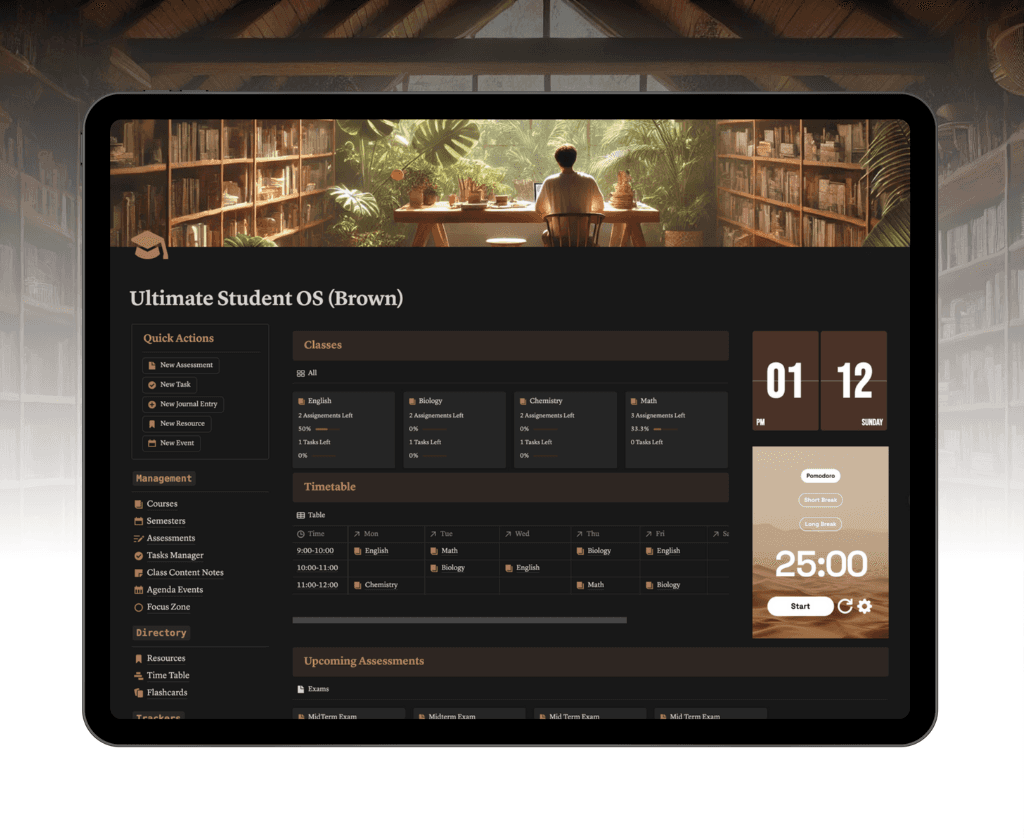
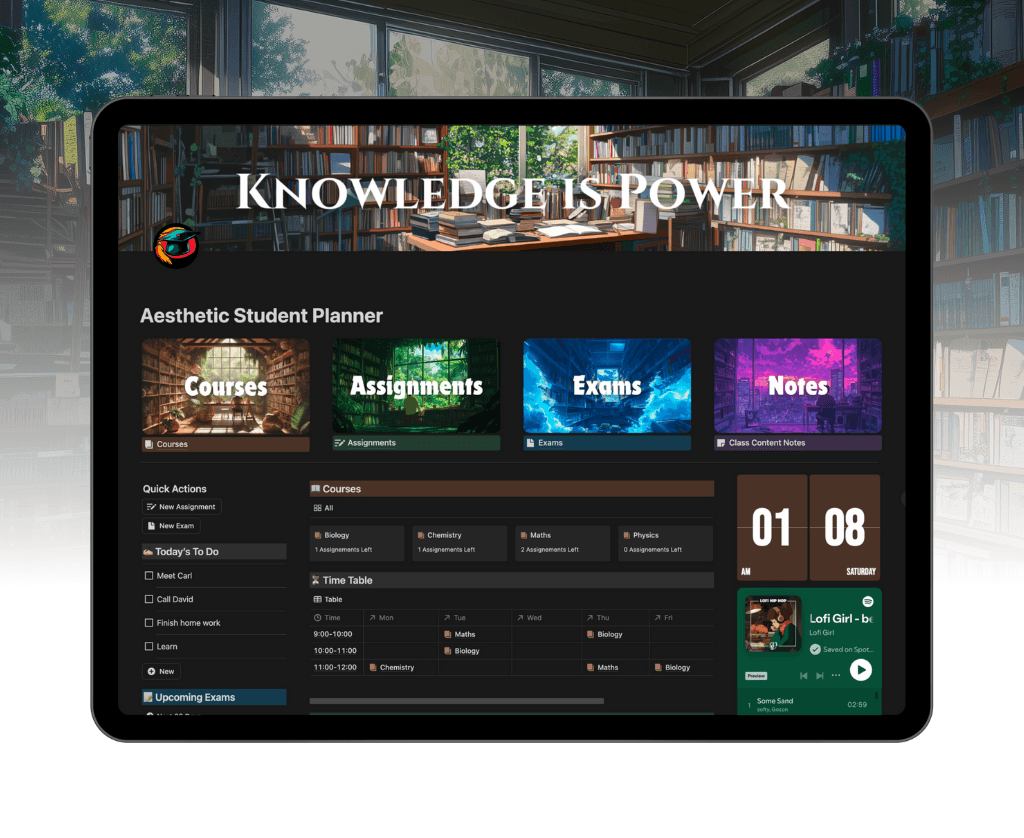
Getting started with Notion can feel overwhelming, especially when you’re faced with endless customization options, databases, and layouts. But with the right strategies, Notion quickly transforms into one of the most powerful productivity tools available.
In this guide, we’ll share the best Notion tips for beginners to help you build a clean workspace, use databases effectively, and structure your pages like a pro. Whether you're a student, entrepreneur, freelancer, or content creator, these practical tips will help you unlock Notion’s full potential from day one.
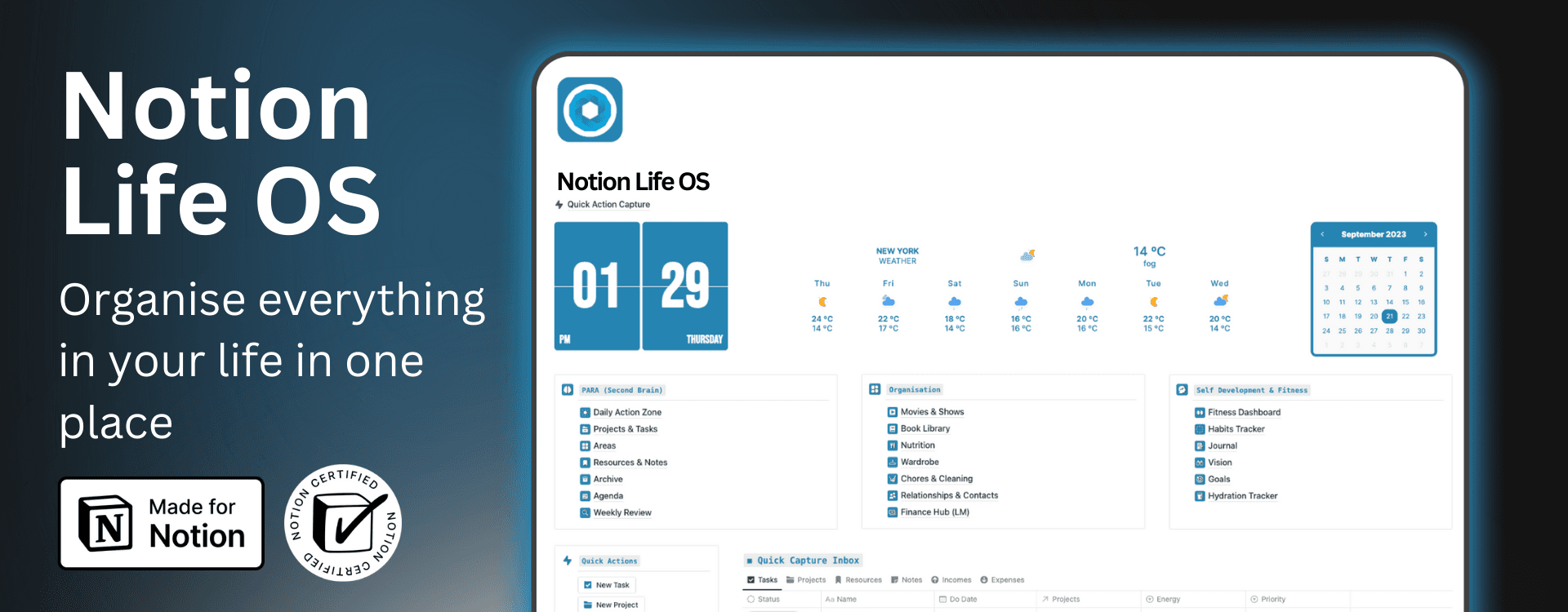
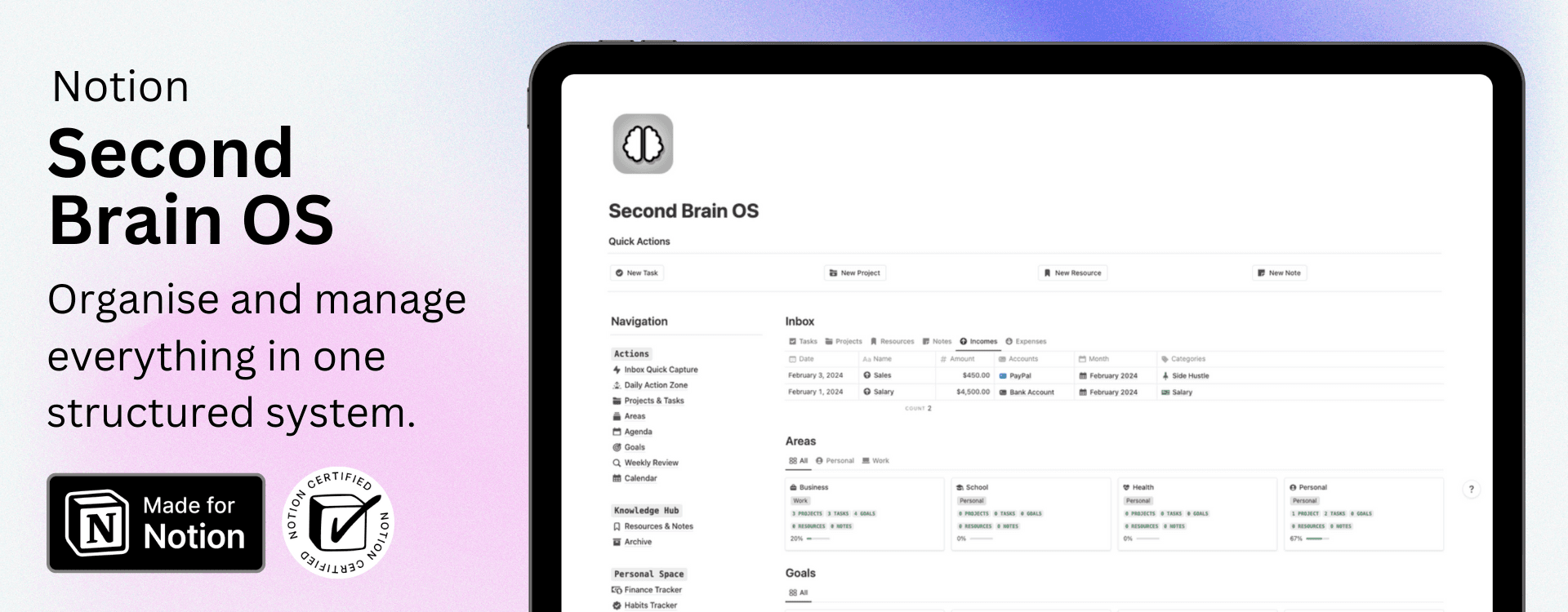
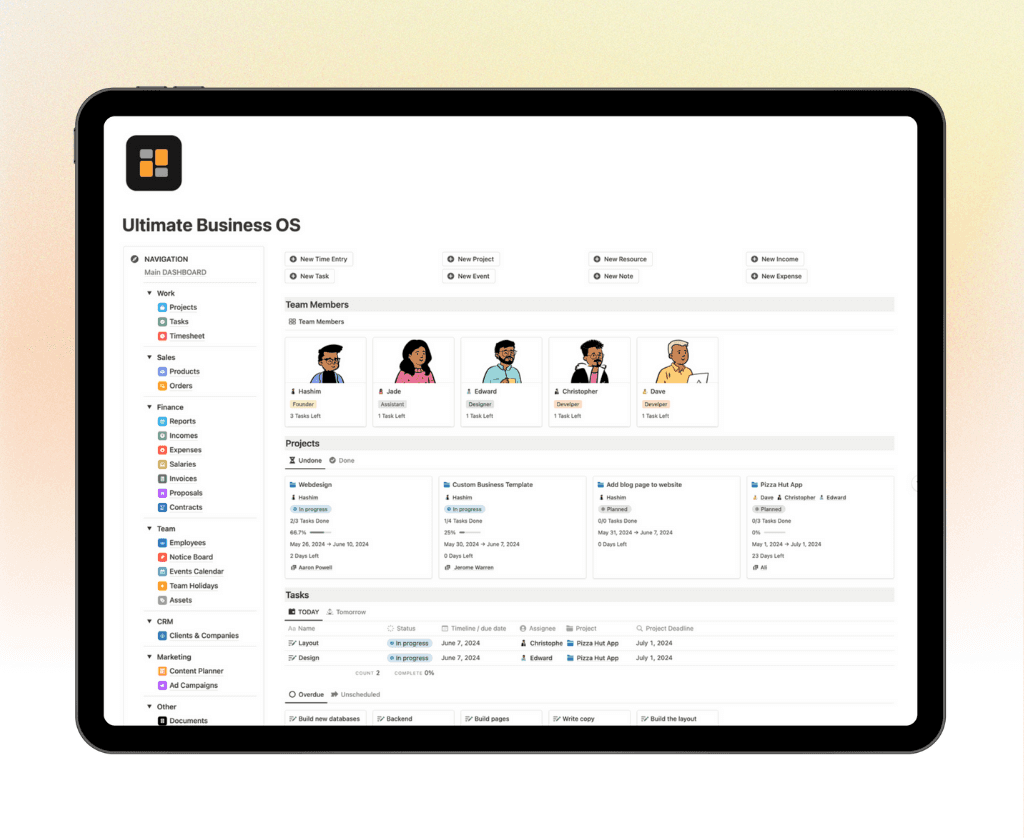
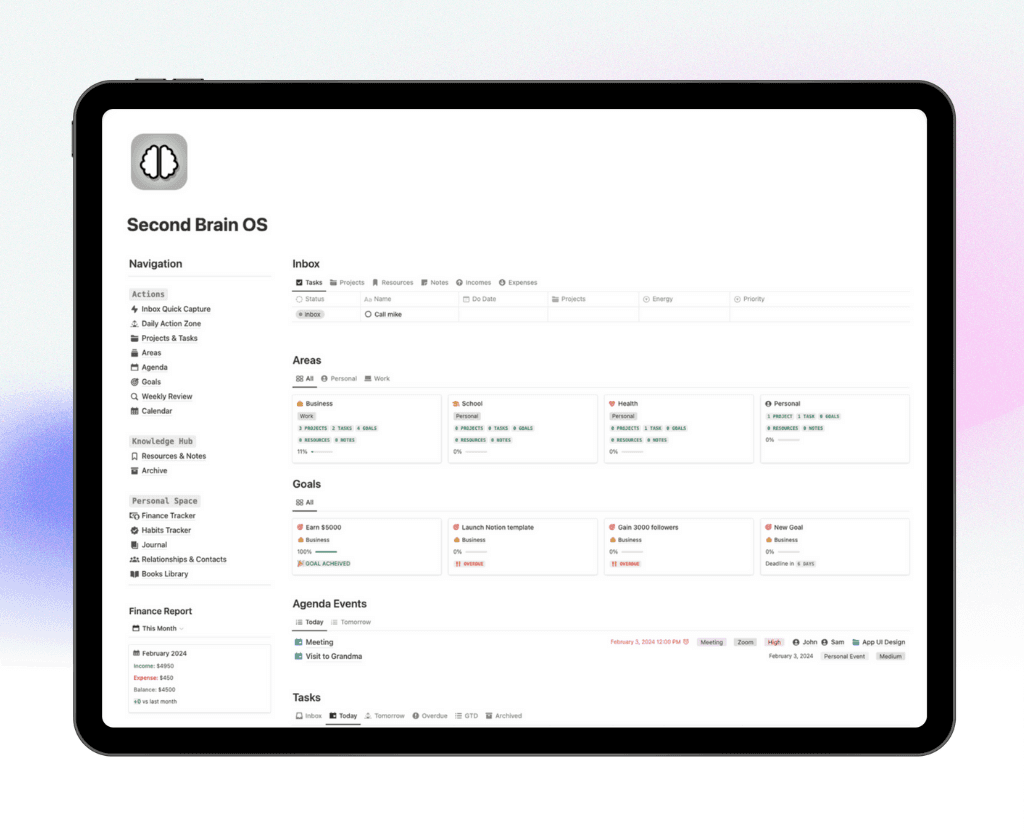
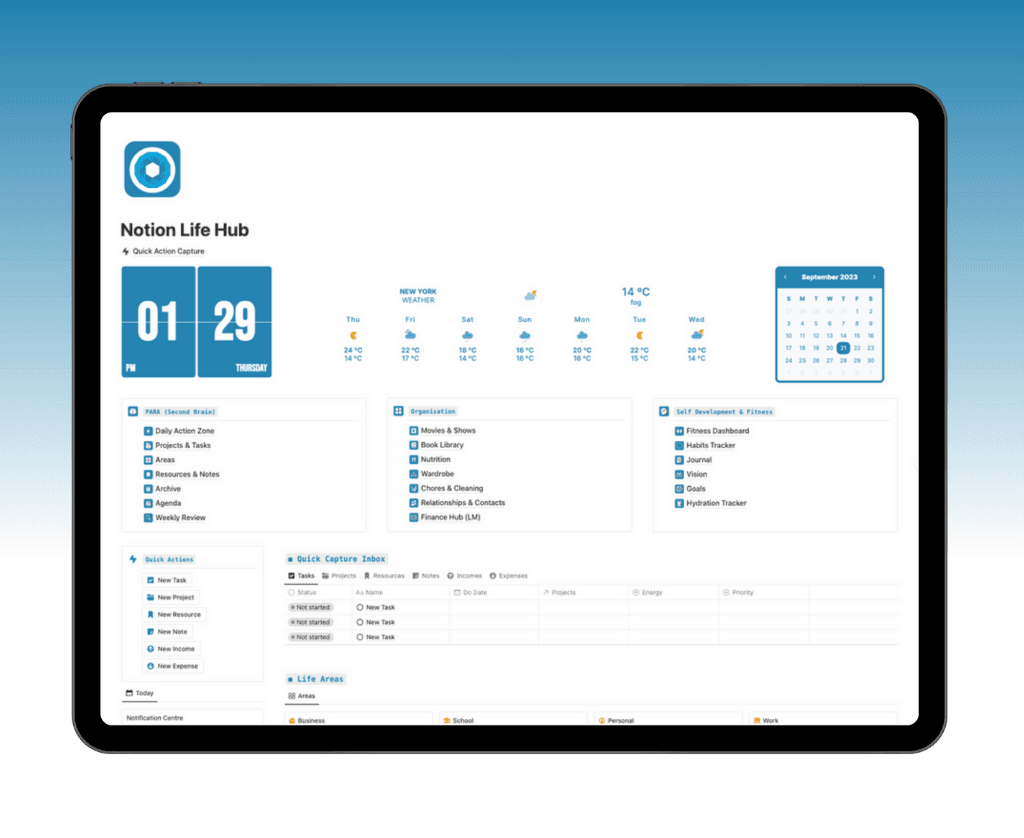
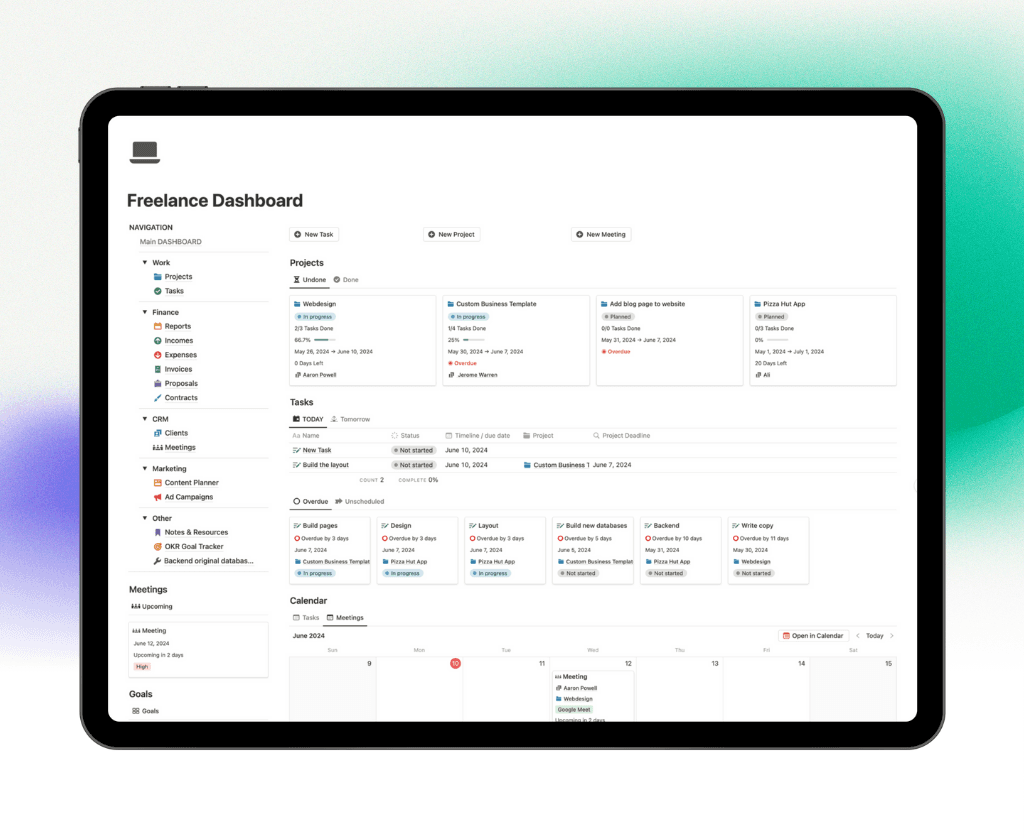
If you’re looking to go beyond the basics, explore some of our most popular guides on Best Notion Dashboards, Notion Second Brain Templates, Notion Life OS Templates, Notion Project Management Templates, and Notion Habit Tracker Templates, all designed to help you build smarter systems inside Notion.
Let’s dive into the essential Notion tips that will help you work faster, stay organized, and create a workspace that truly works for you.
Best Notion Tips for Beginners
1. Start with a Simple Home Dashboard
When you first open Notion, it can feel overwhelming because you can build almost anything. The biggest mistake beginners make is trying to build everything at once.
Instead, create a simple Home Dashboard that includes:
A task list
A quick notes section
A few frequently used pages (e.g., Projects, Study, Journal)
Keep it minimal. The goal is to create a central command center where you can navigate your workspace easily. As you grow more comfortable, you can gradually add widgets, linked databases, and advanced systems.
Pro tip: Think of your dashboard as your “Workspace homepage”. It should reduce friction, not add complexity.
2. Understand That Everything Is a Block
In Notion, everything is built using blocks. A paragraph, heading, checklist, image, toggle, table - they’re all blocks.
This means you can:
Drag and drop content anywhere
Turn one block type into another (e.g., text → heading → to-do)
Nest blocks inside toggles or columns
Type / to see all available block options. Learning this slash command menu early will dramatically speed up your workflow.
Mastering blocks gives you layout flexibility that most other productivity tools don’t offer.
3. Use Databases for Structure (Not Just Notes)
Databases are Notion’s most powerful feature. Beginners often treat Notion like a basic note-taking app, but databases unlock its real potential.
You can use databases to manage:
Tasks
Projects
Study material
Content ideas
Clients
Reading lists
Each database item is its own page, meaning you can store detailed information inside each entry.
For example:
Instead of writing tasks in random bullet lists, create a Tasks Database with properties like:
Status
Due Date
Priority
Category
This allows filtering, sorting, and organizing your work in a structured way.
4. Master Different Database Views
One database can be displayed in multiple ways using views. This is extremely powerful for beginners to understand.
Common views include:
Table View – Best for detailed lists
Board View (Kanban) – Great for workflows (To-Do → Doing → Done)
Calendar View – Ideal for deadlines and content planning
Timeline View – Useful for project planning
You don’t need separate databases for each purpose. Just create multiple views of the same database.
For example:
A student can use:
Calendar view for exam dates
Board view for assignment progress
Table view for detailed tracking
Same data. Different perspective.
5. Use Linked Databases Instead of Duplicating
A common beginner mistake is copying and pasting databases into different pages.
Instead, use “Create Linked View of Database.”
This allows you to:
Show the same database on multiple pages
Apply different filters
Display different views
Example:
On your Home Dashboard, you can show:
Only tasks due today
Only high-priority tasks
Only tasks related to one project
All of these come from one master database.
This keeps your workspace clean and prevents duplicate data.
6. Learn Essential Keyboard Shortcuts
Keyboard shortcuts dramatically increase speed and efficiency.
Some useful ones:
Ctrl/Cmd + D→ DuplicateCtrl/Cmd + Shift + L→ Toggle dark mode/→ Insert new block@→ Mention a page, date, or person[[→ Quickly link to another page
If you’re building productivity systems or managing large databases, shortcuts save hours over time.
Beginners who learn shortcuts early become advanced users much faster.
7. Keep Your Workspace Organized from Day One
Notion can become messy if you don’t structure it properly.
Here’s how to stay organized:
Group related pages inside parent pages
Avoid creating random standalone pages
Use clear naming conventions
Archive old pages instead of deleting them
For example:
Instead of creating pages scattered everywhere, create main categories like:
Work
Study
Personal
Resources
Inside each, keep structured subpages.
Clean organization makes scaling your workspace easier later.
8. Start with Templates, Then Customize
Notion provides built-in templates for:
Task management
Meeting notes
Habit tracking
Personal journals
Project planning
Using templates helps beginners understand:
How databases are structured
How properties work
How relations and rollups function
Instead of building everything from scratch, duplicate a template and modify it according to your workflow.
You’ll learn faster by editing existing systems than by trying to design complex systems immediately.
9. Use Relations and Rollups (Beginner-Friendly Version)
Once you understand databases, take one small step further: connect them.
Relations allow you to link two databases together.
Rollups allow you to display information from related databases.
Example:
A Projects database
A Tasks database
Each task can be linked to a project. Then inside the Projects database, you can automatically see:
How many tasks are completed
What tasks are pending
This creates powerful tracking systems without manual updates.
Even beginners can start with simple relations to level up their workspace.
10. Customize Your Workspace for Motivation
Notion is highly customizable. While functionality matters, aesthetics also influence consistency.
You can:
Add icons and covers
Use dividers and headings
Create column layouts
Use callouts for highlights
A visually clean workspace makes you more likely to use it daily.
But remember: aesthetics should enhance clarity, not replace structure.
Conclusion
Mastering these Notion tips is the first step toward building a powerful, organized, and distraction-free workspace. By understanding blocks, databases, views, and linked systems, you can transform Notion from a simple note-taking app into a complete productivity system tailored to your workflow.
As you continue improving your setup, don’t stop at the basics. Explore our in-depth guides on Best Notion Dashboards, Notion Second Brain Templates, Notion Life OS Templates, Notion Project Management Templates, and Notion Habit Tracker Templates to level up your workspace even further. If you're building systems for business or clients, you may also find value in our curated lists of Notion CRM Templates, Notion Marketing Templates, and Notion To-Do List Templates.
The key to success with Notion is simple: start small, stay structured, and gradually build smarter systems. With the right foundation and the right templates, you can create a streamlined digital workspace that supports your goals, boosts productivity, and scales with your growth.
If you’re ready to get started with Notion using a simple and completely free setup, explore our free Notion templates at notion4management.com.
← All Posts
Get Lifetime Access
Get instant lifetime access to all current and future Notion templates.
✓ 8 Premium Notion Templates
✓ Lifetime Access
✓ Access to all Future Templates
✓ $300+ value
✓ Bonus 10 Templates
$119
$299
Get it Now
70% OFF