← All Posts

Hashim Sultan

Dec 30, 2025
Table Of Content
Imagine if you could organize every note, task, project, and long-term goal in one streamlined digital workspace. Many people struggle to keep their digital lives in order, often feeling overwhelmed by scattered files and forgotten to-dos.
Now, picture a solution that brings everything together. In this guide, you will learn how to use notion to its fullest in 2026, taking advantage of new features designed for maximum productivity and clarity.
We will explore Notion’s core strengths, step-by-step setup, advanced workflows, AI enhancements, integration tips, and expert strategies. Are you ready to transform your workflow? Follow along and unlock your most organized and efficient year yet.
Understanding Notion in 2026: What’s New and Why It Matters
Notion has come a long way since its launch, transforming from a simple note-taking tool into a robust platform that organizations and individuals rely on daily. In 2026, those who use notion are experiencing a productivity revolution driven by a wave of innovative features and a rapidly expanding global community.
Notion’s Evolution and 2026 Breakthroughs
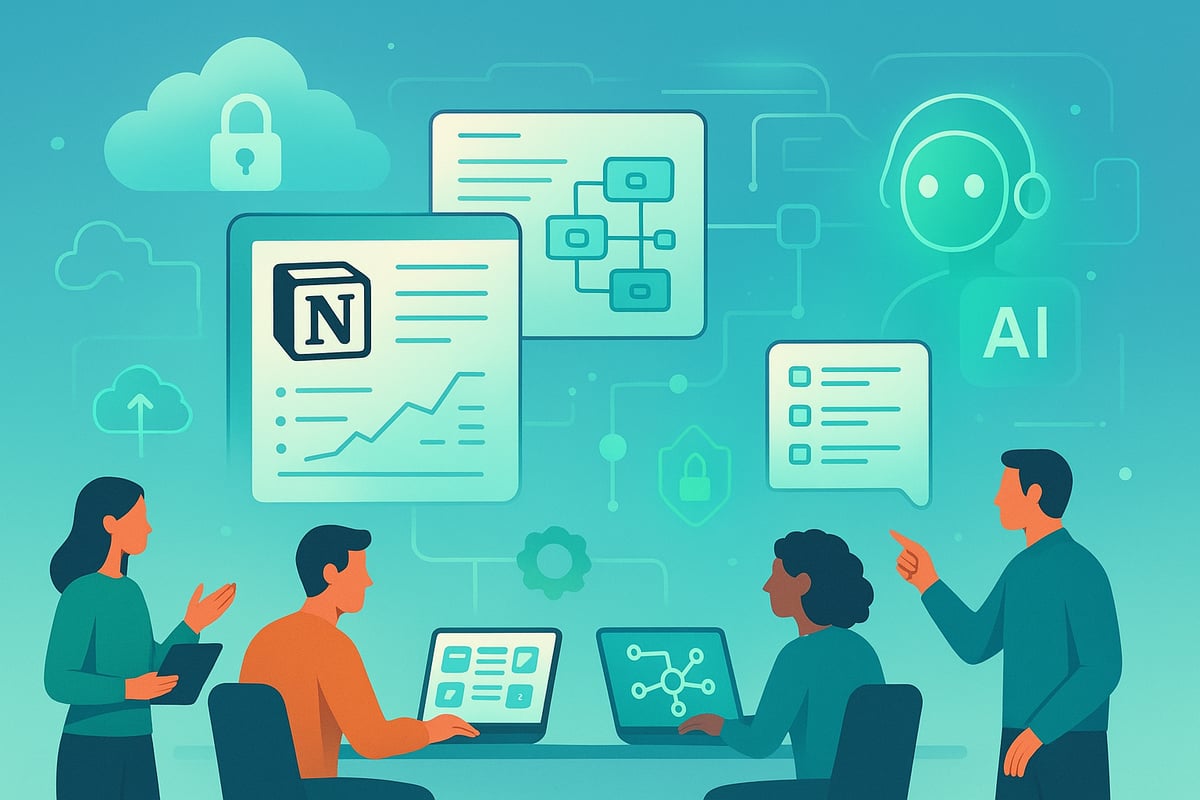
Since its inception, Notion has evolved to become the digital backbone for both personal knowledge management and business operations. In 2026, the platform introduces enhanced AI that not only summarizes meetings but also tags tasks and offers personalized onboarding, making it easier than ever to use notion for a variety of workflows. Improved databases now offer advanced filtering, relational capabilities, and real-time collaboration, giving users the power to build complex systems without coding.
Notion’s latest privacy upgrades ensure that sensitive information is protected, addressing a major concern in today’s productivity landscape. With seamless integrations, users can now connect Notion to their favorite tools, creating a unified workspace that adapts to unique needs. For a deeper understanding of how these features can transform your workflow, see the How Notion can improve productivity guide.
The Connected Workspace and Block System
One of the defining aspects for those who use notion is its connected workspace concept. Notion blends documents, wikis, project management, and databases into a single platform. The core of this flexibility lies in the block system. Every piece of content—text, images, tasks, databases—is a block that can be moved, linked, or customized. This modular approach allows users to build custom dashboards and workflows tailored to any purpose, from managing projects to tracking personal goals.
Notion’s block system empowers users to visualize, organize, and connect information in ways that static tools cannot match. Whether you are designing a team knowledge base or a personal Second Brain, the block system ensures that every element fits seamlessly into your digital ecosystem.
How Notion Stands Out: A Comparison
In 2026, more than 30 million people use notion globally, with reports indicating even higher growth rates into the next year. But what sets Notion apart from other productivity tools? Here’s a quick comparison:
Feature | Notion 2026 | Traditional Tools | Other All-in-Ones |
|---|---|---|---|
AI Summarization | Yes | Rare | Limited |
Custom Databases | Advanced | Basic/None | Moderate |
Block-Based Flexibility | Full | No | Partial |
Integrations | Extensive | Limited | Varies |
Real-Time Collaboration | Robust | Partial | Good |
Privacy Controls | Enhanced | Basic | Standard |
Notion’s ability to use notion as a foundation for everything from project management to knowledge sharing is unmatched. The platform’s rapid growth is a testament to its versatility and commitment to user needs.
Real-World Impact, Privacy, and AI Enhancements
People and organizations of all sizes use notion for diverse needs. Students build academic dashboards, businesses manage projects and clients, while creatives track ideas and content pipelines. Enhanced privacy features address growing concerns about data security, ensuring that even sensitive business information is safe.
AI-powered tools now automatically summarize meetings, tag tasks, and provide personalized setup guides, minimizing manual effort and reducing the risk of information overload. This shift means you can use notion not just to store information, but to actively streamline and optimize your workflow.
To sum up, Notion in 2026 is more than a productivity tool—it is a connected, intelligent workspace that empowers users to do more with less effort. As you explore how to use notion effectively, you’ll discover a platform designed to keep you organized, efficient, and secure.
Getting Started: Setting Up Your Notion Workspace for Success
Ready to use Notion to its full potential in 2026? This section will guide you through every critical step, from signing up to creating a workspace that reflects your goals. Whether you are brand new or looking to refine your setup, you will find actionable advice to help you use notion efficiently right from the start.
Creating Your Account and Workspace
To begin to use notion, visit the official site and sign up with your email or SSO option. Choose a free or paid plan based on your collaboration and storage needs. The free plan is ideal for personal use, while paid tiers offer advanced permissions, unlimited file uploads, and team features.
After registration, name your workspace and upload a logo or cover image to reflect your brand. Set access controls to manage who can join or view your workspace. Notion in 2026 supports real-time sync across desktop, mobile, and tablet, so you can use notion seamlessly anywhere. Adjust privacy settings to control sharing options, keeping your information secure whether you collaborate with a team or work solo.
Mastering the Notion Interface
When you use notion, the interface is intuitive yet powerful. The sidebar organizes your pages and databases, while the top menu provides quick access to global search and settings. Pages can nest subpages, making it easy to build a hierarchy for projects, notes, or goals.
Switch between tables, boards, calendars, timelines, and gallery views to visualize your information in the format you prefer. Use notion’s quick search and keyboard shortcuts to instantly find content. With a few clicks, you can customize the layout, collapse sections, and jump between projects, helping you use notion efficiently every day.
Essential Blocks and Database Basics
Every time you use notion, you interact with blocks. These modular elements include text, headings, to-dos, toggles, images, and embedded media. To build a system, simply add and arrange blocks as needed.
Databases are the backbone for organizing tasks, notes, and projects. You can create linked databases to sync information across multiple pages. Assign properties like tags, dates, relations, or formulas for dynamic tracking. For example, use notion to set up a simple task tracker and notes database, linking them to monitor progress and centralize your workflow.
Personalizing Your Workspace Aesthetics
One benefit when you use notion is the ability to make your workspace visually appealing. Add icons or covers to pages for instant recognition. Use color coding to categorize tasks, projects, or areas of life. Group related pages for easier access and navigation.
Create dashboards with widgets and visual cues to keep motivation high. For instance, a color-coded workspace enables you to spot priorities at a glance, making it easier to use notion for both work and personal organization.
How Notion Templates Accelerate Setup
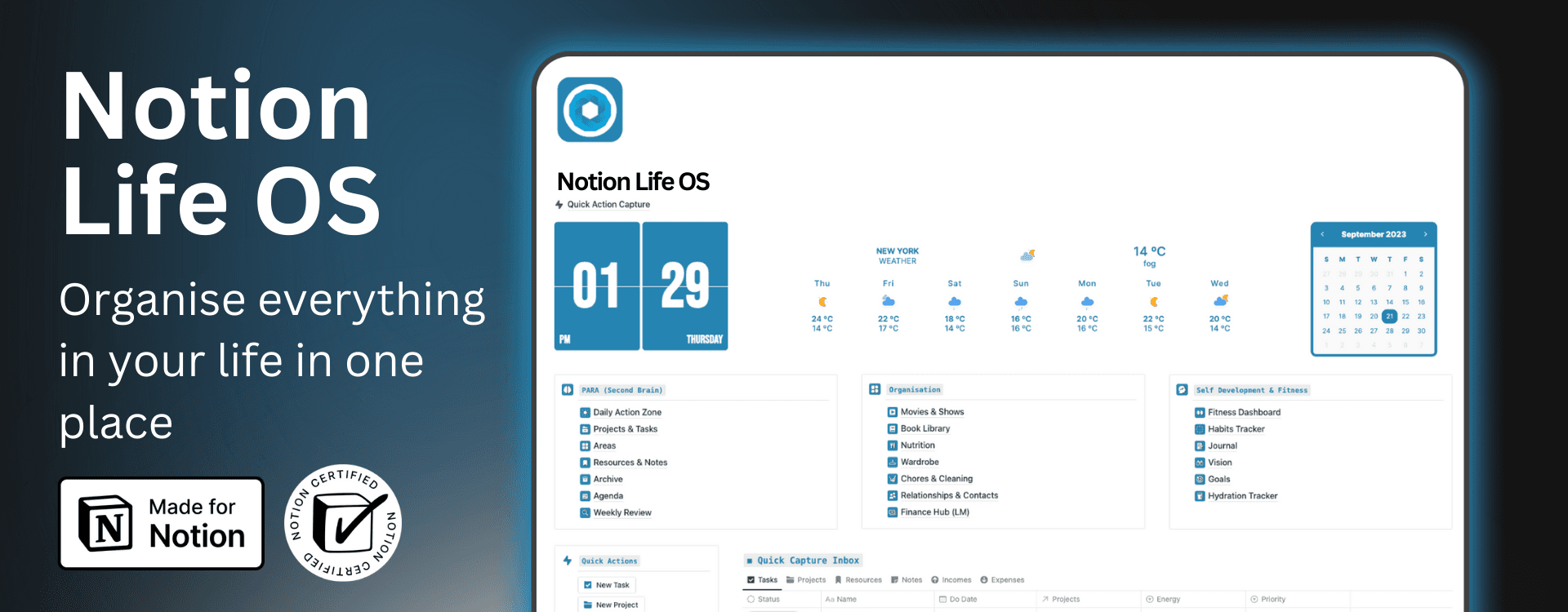
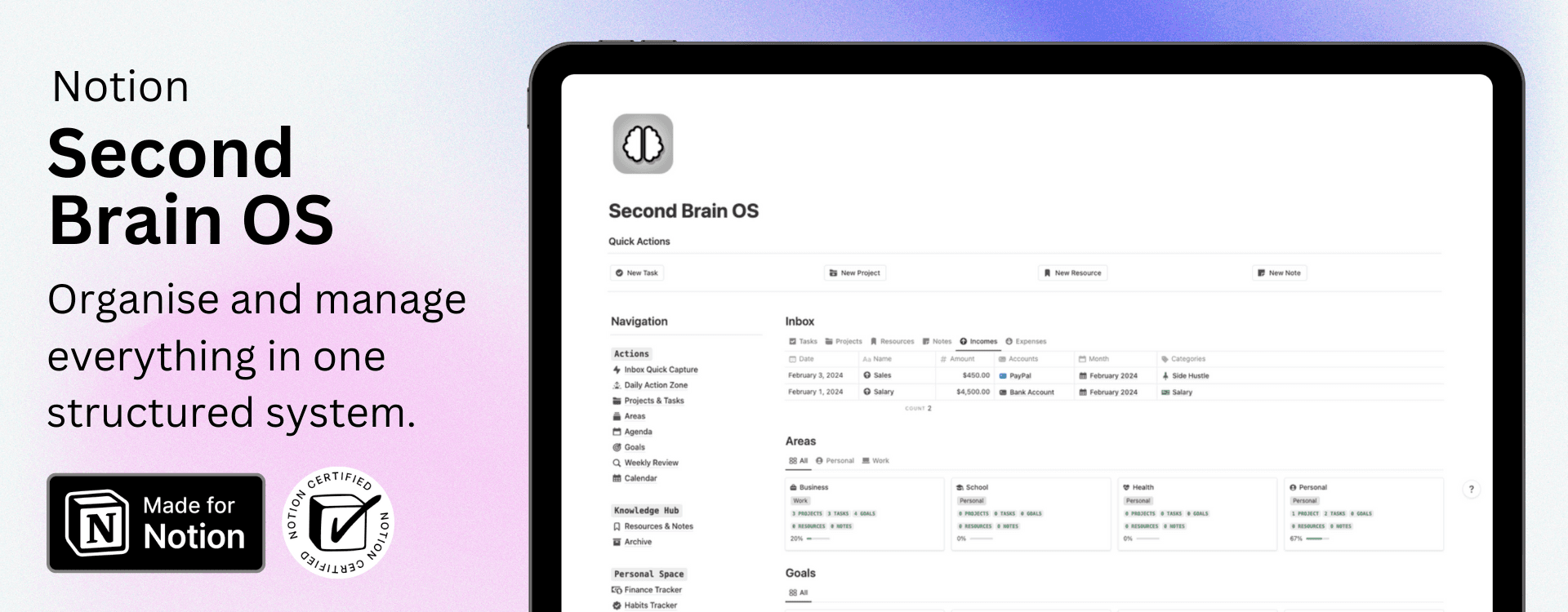
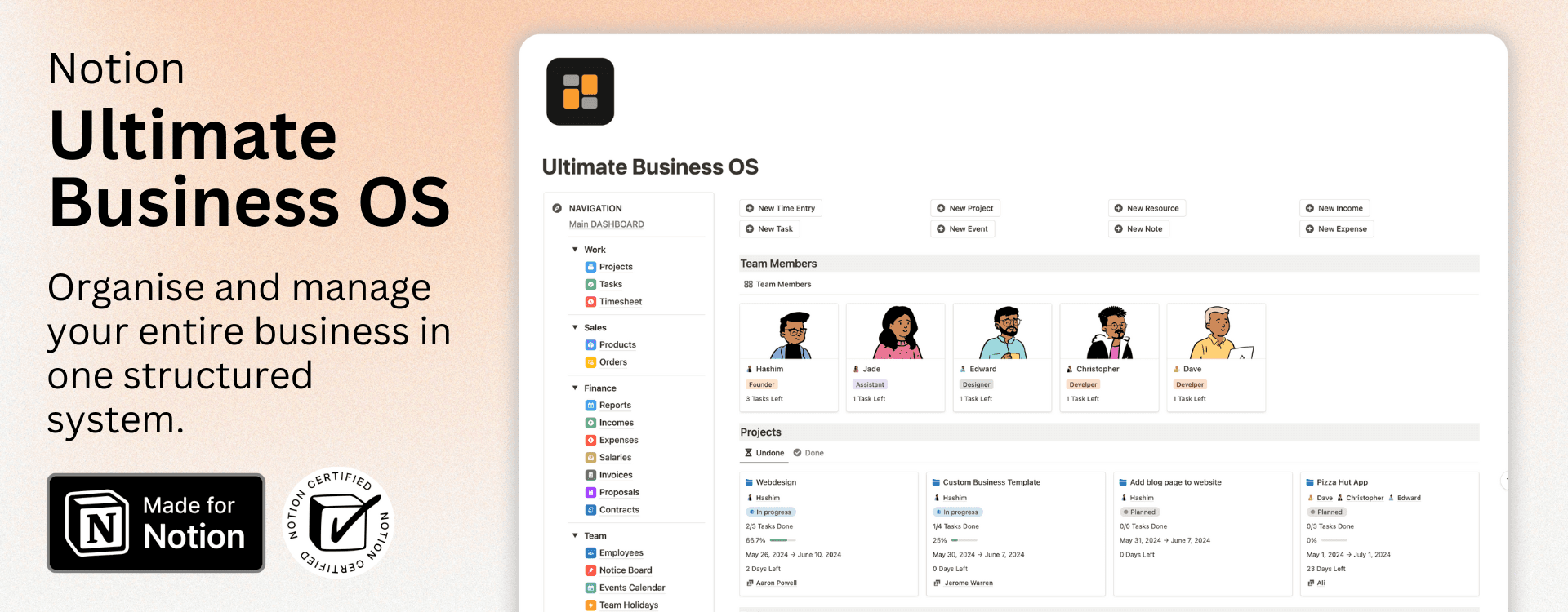
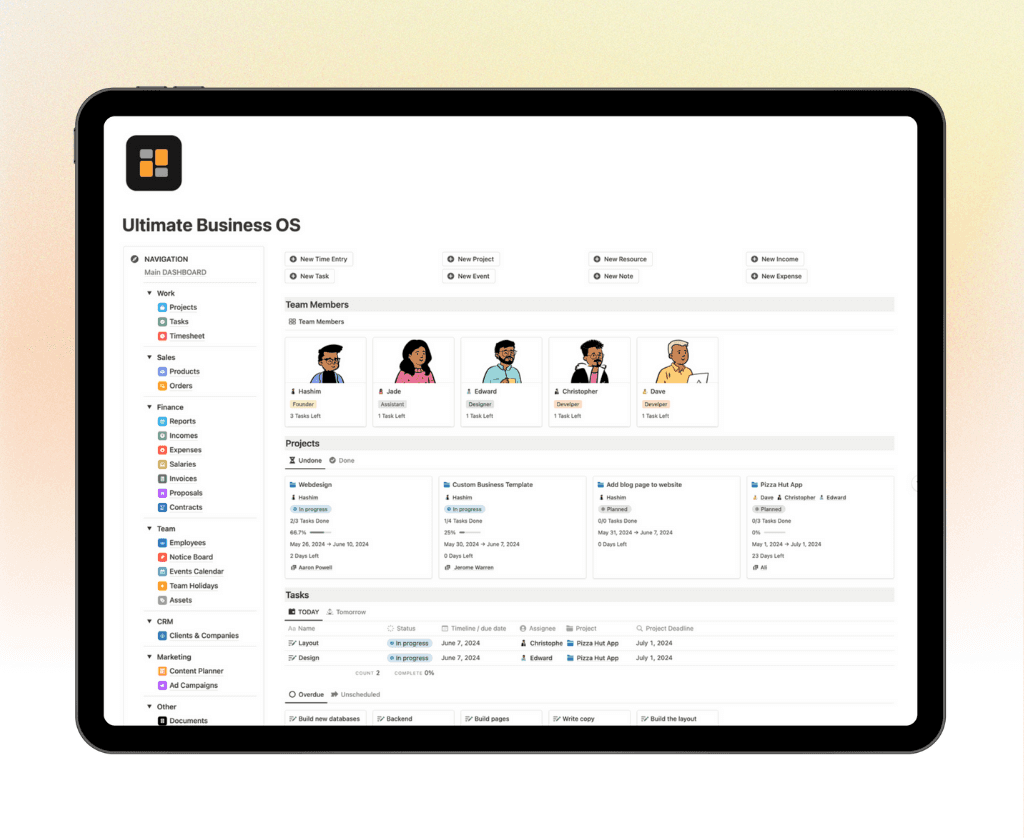
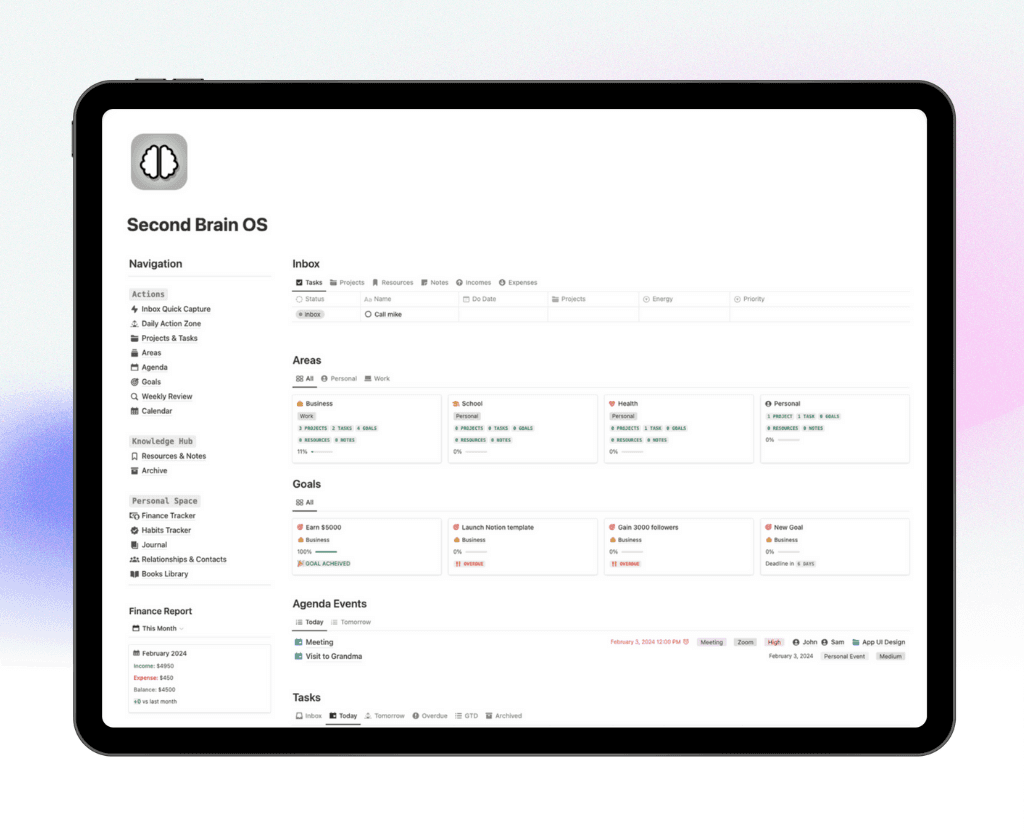
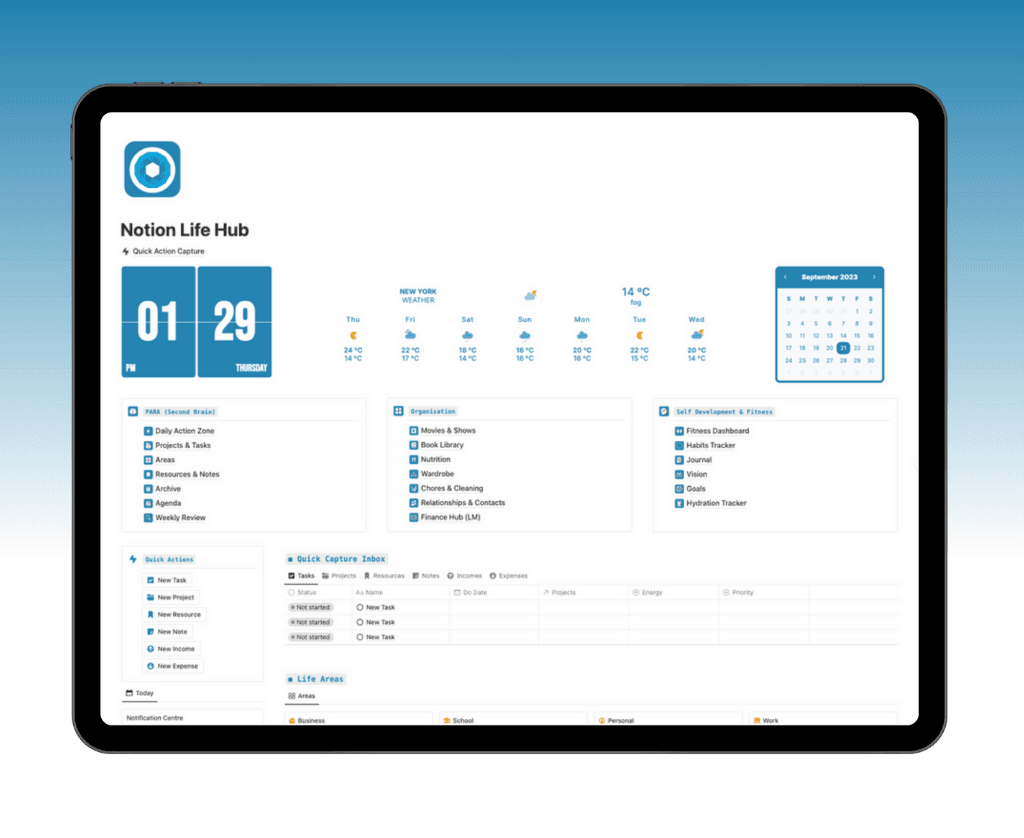
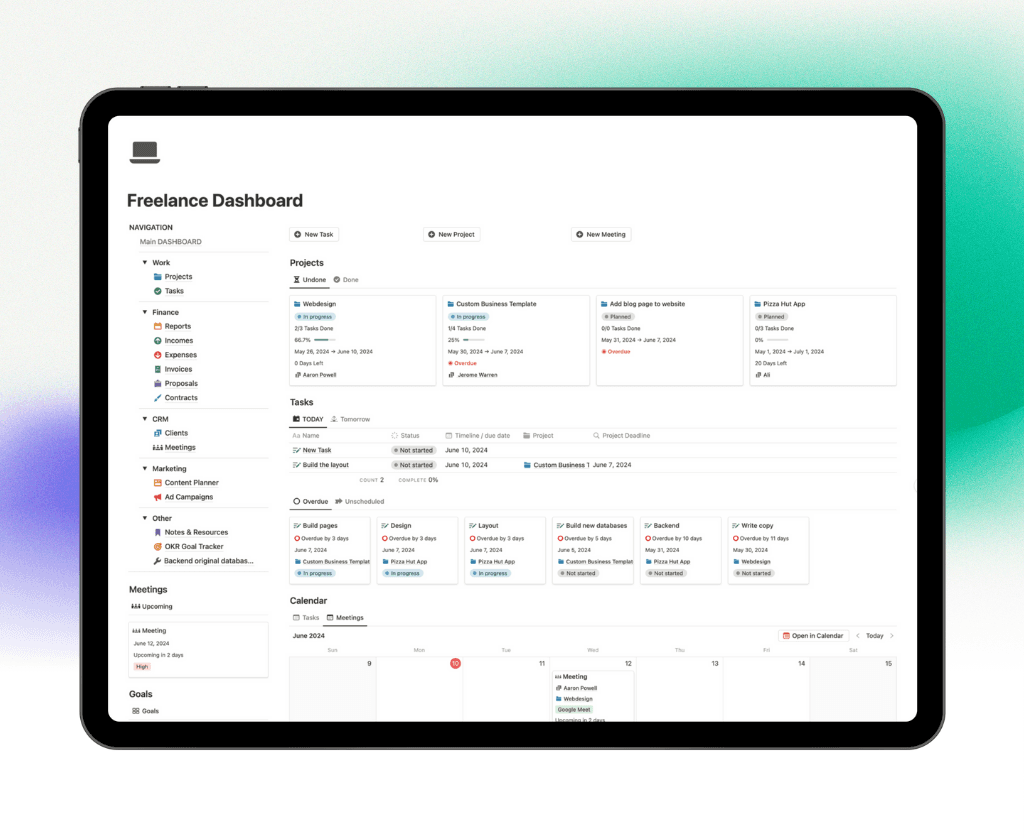
Notion templates are a game changer when you use notion, saving you hours of manual setup. Templates provide ready-made frameworks for business, personal life, or creative pursuits. You will find options like Business OS, Life OS, Second Brain, and more.
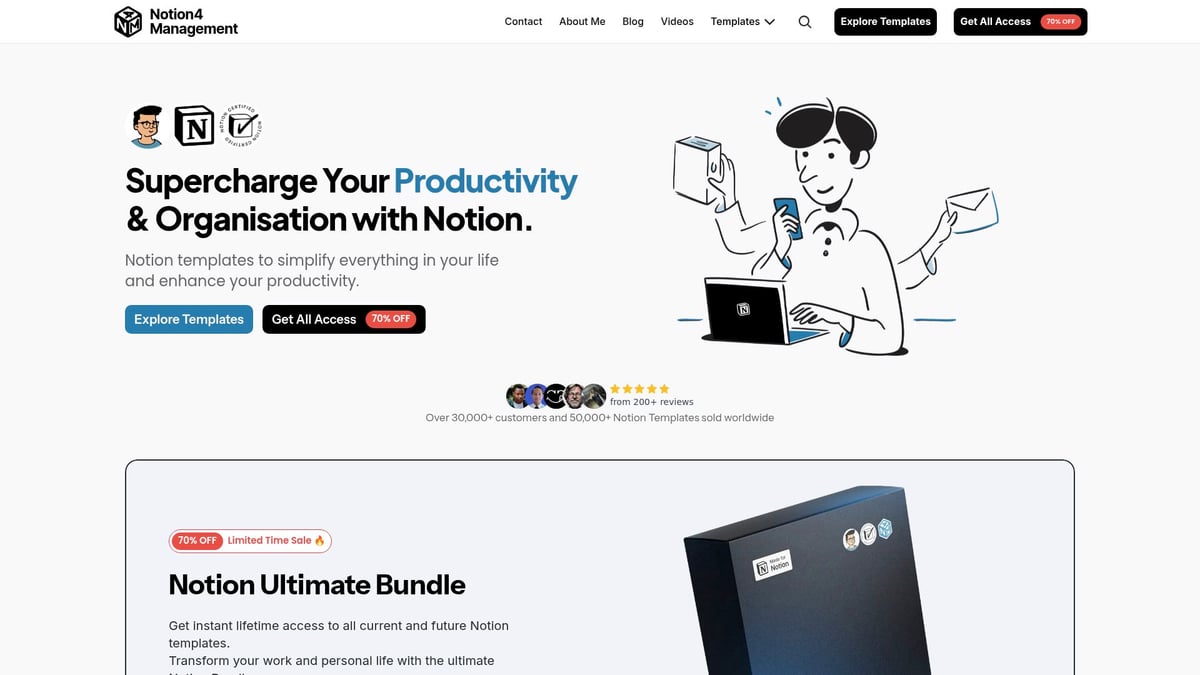
Providers such as Notion4Management have served over 30,000 customers with curated templates for every workflow. For inspiration, you might select a Life OS template to organize your personal and professional goals. To get started, import a template, then customize properties and layouts to fit your needs. For a curated list of top options to use notion more productively, check out the Best Notion productivity templates.
Step-by-Step: Building Effective Systems in Notion
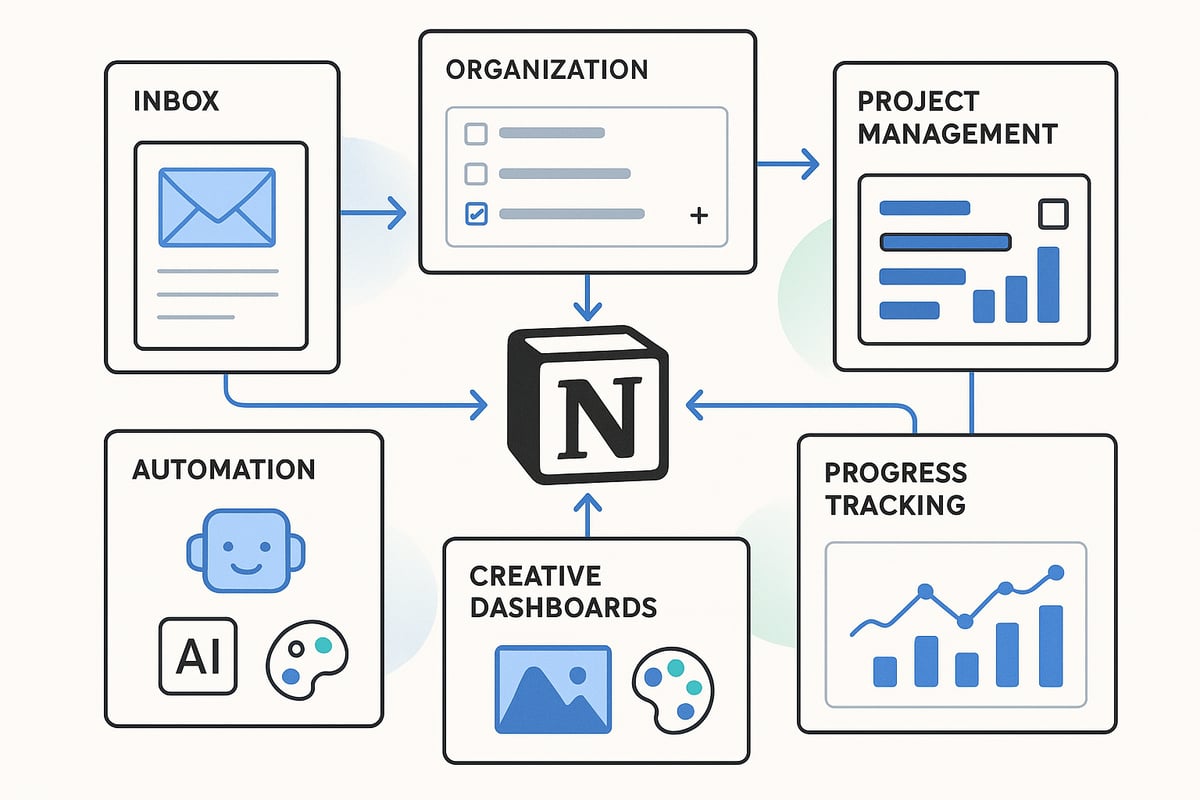
Building powerful, sustainable systems is the secret to maximizing productivity when you use notion. By following a clear, step-by-step approach, you can capture, organize, and execute on everything that matters—without letting anything slip through the cracks.
Step 1: Inboxing Everything—Capture Without Chaos
Every effective system begins with a reliable inbox. When you use notion, set up a universal inbox database to capture all your thoughts, tasks, and ideas as soon as they arise. This reduces mental clutter and ensures nothing gets lost.
Create a dedicated "Inbox" database at the top of your workspace.
Add quick-capture options on desktop and mobile for one-tap entry.
Use the Notion Web Clipper to save articles, links, or emails directly.
For example, forward important emails or save inspiring web content straight into your Notion inbox. This centralized capture method lets you use notion as your personal idea vault, making sure you never lose track of anything important.
Step 2: Processing and Organizing Information
Once everything is captured, the next step is to process and organize your incoming items. Dedicate time each day or week to review your inbox and sort entries into actionable tasks, reference notes, or projects.
Move tasks into specific project boards or calendar views.
Assign tags, priorities, and deadlines using database properties.
Archive or file reference materials in dedicated pages.
By maintaining a regular "inbox zero" routine, you can use notion to stay organized and prevent backlogs. This habit transforms scattered notes into a well-structured action plan, keeping your workflow efficient and focused.
Step 3: Project and Task Management—From Planning to Execution
Notion excels at managing projects of any size. Build project databases with fields for tasks, deadlines, dependencies, and priorities. Use kanban boards, timelines, and calendars to visualize progress.
Break projects into actionable steps and assign owners or due dates.
Switch between board, table, and calendar views for flexible planning.
Link related tasks and documents for easy reference.
Imagine managing a content calendar where each article is a database entry, with status tags and review deadlines. When you use notion for project management, you gain a clear overview of what needs to be done and when, streamlining execution from start to finish.
Step 4: Tracking Progress, Goals, and Reviews
Tracking your progress is essential for growth. Create databases to monitor personal or professional goals, then set up recurring weekly, monthly, or yearly reviews.
Add properties for milestones, completion rates, and habits.
Visualize progress with charts or summary views.
Set recurring reminders for self-reflection and reviews.
For instance, build a personal dashboard that tracks habits, milestones, and completed projects. When you use notion to review your progress regularly, you gain valuable insights and stay motivated to reach your objectives.
Step 5: Integrating Personal and Creative Workflows
To achieve holistic life management, integrate personal goals, creative projects, and planning tools in one workspace. Link databases together, such as a goal tracker, travel planner, and idea bank, for a seamless overview.
Design custom dashboards for values, ideas, and aspirations.
Connect creative project databases with personal planning tools.
Use color coding and icons for quick navigation.
If you want to take this further, learn how to set up a Second Brain with Notion to organize knowledge, tasks, and inspiration in one place. When you use notion for both work and personal life, you create a flexible system that adapts as your needs evolve.
Step 6: Automating and Streamlining Your Workflow
In 2026, automation is a game changer. Use Notion AI to auto-tag entries, summarize meeting notes, and suggest next actions. Set up recurring tasks and reminders to ensure nothing falls through the cracks.
Integrate Notion with Google Calendar, Slack, or email for seamless updates.
Use external automation tools (like Zapier or Make) for advanced workflows.
Automate meeting note creation and action item tracking.
By embracing automation, you use notion to eliminate repetitive tasks and focus on high-impact work. The result is a streamlined, future-ready workflow that empowers you to do more with less effort.
Advanced Notion Workflows: AI, Integrations, and Customizations
Unlocking the full potential as you use notion in 2026 means mastering advanced workflows that blend artificial intelligence, seamless integrations, and powerful customizations. These capabilities transform Notion from a digital notebook into a dynamic productivity hub, ready to support any personal or professional goal.
Leveraging Notion AI for Smarter Productivity
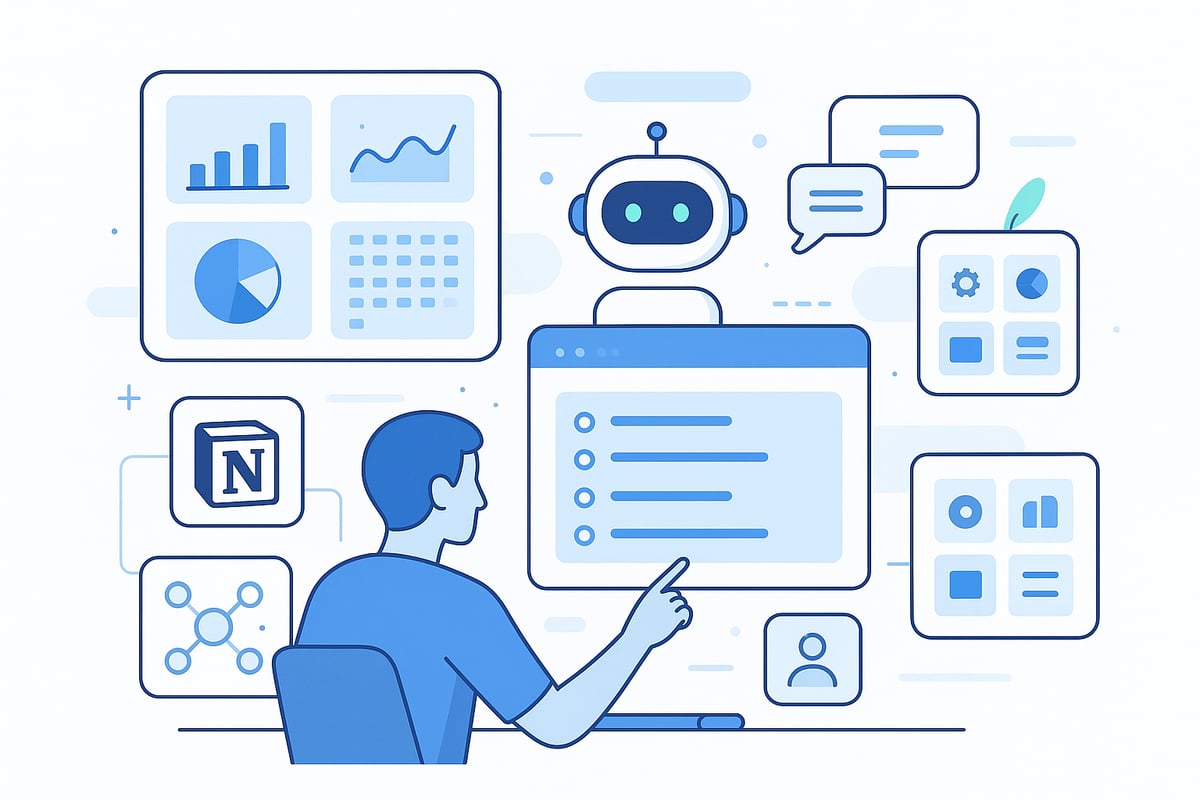
In 2026, Notion’s AI features make it easier than ever to use notion for smarter, more efficient workflows. From automatic meeting summaries to personalized suggestions, Notion AI adapts to your unique patterns. It can auto-tag tasks, summarize lengthy notes, and even provide custom setup guides based on your work style.
One of the most powerful additions is Notion’s AI agents, which automate data analysis and task management. According to Notion's AI Agents for Task Automation, these agents handle repetitive tasks, freeing up your time for more creative work. Imagine AI transcribing calls, suggesting next steps, and flagging potential burnout by tracking your workload patterns.
With these tools, you can use notion to gain actionable insights, boost productivity, and maintain balance.
Integrating Notion with Your Favorite Apps
To use notion as your productivity command center, connect it with apps you rely on daily. Notion’s 2026 integrations allow seamless syncing with Google Calendar, Slack, Trello, and more. You can automate workflows using third-party tools like Zapier or Make, streamlining data transfer between platforms.
Importing project data, client feedback, or meeting notes is now frictionless. For example, sync a Tally feedback form directly into Notion databases to centralize responses. This integration ensures you never miss a detail and can act promptly.
With these connections, you use notion to unify tasks, communication, and data into a single, organized workspace.
Creating Custom Dashboards and Widgets
When you use notion for building custom dashboards, you gain a bird’s-eye view of your entire workflow. Start by designing all-in-one dashboards tailored to your business, studies, or personal life. Incorporate embedded widgets such as weather updates, Pomodoro timers, or analytics for real-time insights.
Notion’s block system enables you to mix and match tables, boards, and calendars. You can even publish dashboards as websites or share them with your team. For inspiration, explore some of the best Notion dashboard setups to see how professionals structure their spaces.
By customizing dashboards and widgets, you use notion to visualize progress, stay organized, and work more efficiently.
Enhancing Visual Organization and Navigation
Visual clarity is essential when you use notion for complex projects. Advanced color coding, unique icons, and strategic page grouping make navigation intuitive. Organize your sidebar by project type, and assign a distinct color scheme to each for instant recognition.
Templates for recurring workflows reduce setup time and ensure consistency. Try grouping pages for each client, class, or initiative, and use covers to motivate and inspire. These small touches add up, making your workspace both functional and visually appealing.
This approach lets you use notion to reduce cognitive load and find information quickly, supporting daily productivity.
Collaboration and Team Productivity in Notion
Collaboration is seamless when you use notion for team projects in 2026. Real-time editing, comments, and mentions keep everyone aligned. Set permissions to control access, ensuring sensitive information stays protected.
Shared templates, project boards, and knowledge bases facilitate remote work and client communication. For example, a design team can manage projects, gather feedback, and update clients all in one place. Notifications and activity feeds help teams stay on track.
By centralizing collaboration, you use notion to drive transparency, accountability, and collective success.
Expert Tips, Hacks, and Best Practices for Notion in 2026
Unlocking the full potential as you use notion means going beyond basics. The following expert tips, hacks, and best practices will help you streamline your workflow, avoid common pitfalls, and ensure your Notion workspace stays efficient and inspiring in 2026.
Mastering Keyboard Shortcuts and Hidden Features
Speed is essential when you use notion for daily tasks. Memorizing keyboard shortcuts can save hours each month. Here’s a quick reference table:
Action | Shortcut (Windows) | Shortcut (Mac) |
|---|---|---|
Quick Find | Ctrl + P | Cmd + P |
Create New Page | Ctrl + N | Cmd + N |
Toggle Sidebar | Ctrl + \ | Cmd + \ |
Duplicate Block | Ctrl + D | Cmd + D |
Jump to Heading | Ctrl + Shift + L | Cmd + Shift + L |
Explore hidden features like slash commands (/table for database, /reminder for alerts) and use the command palette for even faster navigation. These small tweaks multiply your efficiency as you use notion.
Automation and Advanced Integrations with the Notion API
Automating recurring tasks is a game changer when you use notion to its full extent. The Notion API allows you to connect your workspace to hundreds of apps. You can trigger actions using platforms like Zapier or Make, or set up custom scripts for unique workflows.
For meetings, Notion’s AI-powered features can automatically transcribe and summarize discussions. Learn more about this in Notion's AI Meeting Notes Feature. By combining AI and automation, you can reduce manual work and focus on high-impact activities.
Implementing Proven Productivity Frameworks
To use notion effectively, embed trusted productivity systems like PARA (Projects, Areas, Resources, Archives) or GTD (Getting Things Done). Create database templates for projects, tasks, and notes that mirror these frameworks.
A sample PARA setup might look like:
Projects: Active deliverables, each as a database entry.
Areas: Ongoing responsibilities (health, finance, learning).
Resources: Reference materials, articles, templates.
Archives: Completed or inactive items.
Frameworks offer structure so you can use notion to manage complexity with clarity and confidence.
Avoiding Common Pitfalls and Prioritizing Privacy
A frequent mistake as people use notion is overcomplicating their system. Start simple, review workflows weekly, and prune unnecessary pages. Avoid “template overload” by customizing only what you truly need.
Data privacy is crucial. Always set granular access permissions, enable two-factor authentication, and regularly audit shared content. For inspiration on secure, streamlined dashboards, explore the Best Notion dashboards to see how experts balance design and privacy.
Staying Inspired and Motivated
To consistently use notion at a high level, draw inspiration from YouTube tours, community forums, and expert blog posts. Real-world workflows for ADHD management, academic tracking, or business operations can spark new ideas.
Gamification features, like habit trackers and milestone dashboards, keep motivation high. Regular self-reflection pages help you celebrate progress and adjust goals. Remember, the best way to use notion is to adapt it to your evolving needs while keeping your systems lean and purposeful.
Notion for Personal, Academic, and Business Use Cases
Notion's flexibility makes it a top choice for individuals, students, educators, businesses, and freelancers. No matter your goals or daily challenges, you can use notion to design systems that match your needs. Let's explore how different groups unlock value with this powerful platform.
Personal Productivity and Life Management
If you want to boost your daily efficiency, use notion to centralize your life. Create daily planners, habit trackers, and digital journals that sync seamlessly across devices. Notion's templates let you manage wellness, track moods, and plan trips in one place.
For example, design a mood tracker that links to your journal entries, or set up a travel planner with itinerary, packing lists, and budget tables. This all-in-one setup encourages holistic growth and self-improvement. With customizable dashboards, you stay organized and motivated every day.
Academic Organization for Students and Educators
Students and teachers use notion to streamline academic tasks and collaboration. Build class schedules, assignment trackers, and study databases to manage coursework. Notion's database views help you sort tasks by priority or due date, making deadlines clear and manageable.
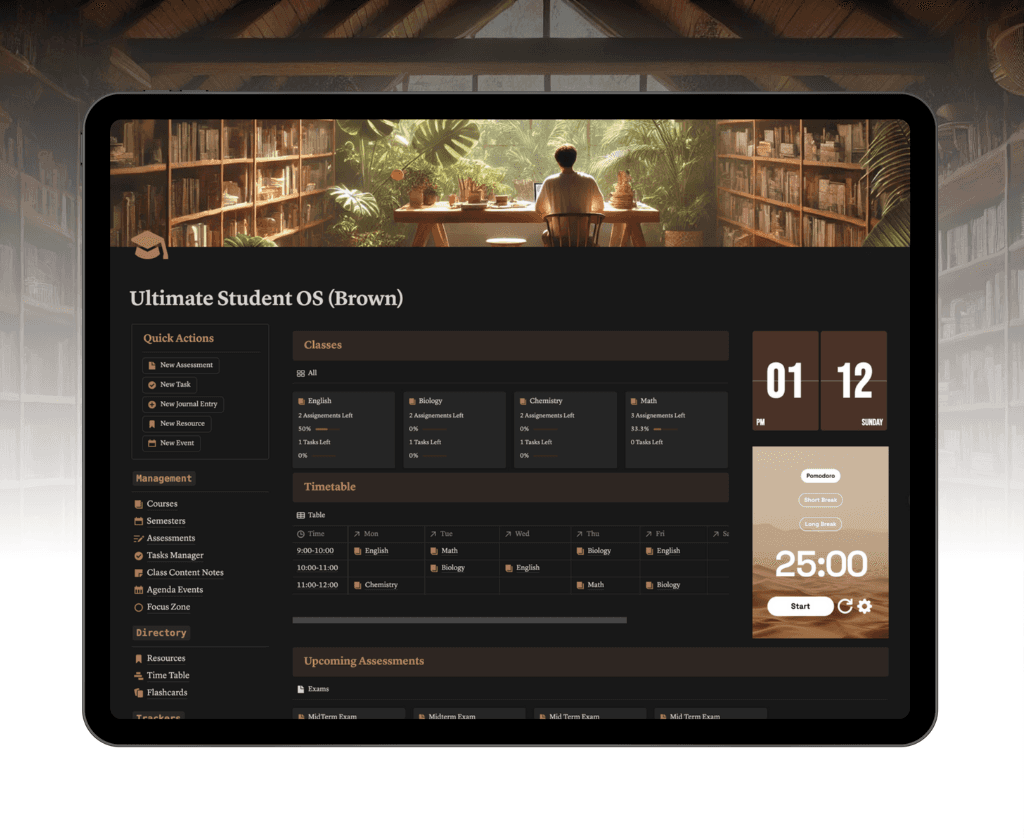
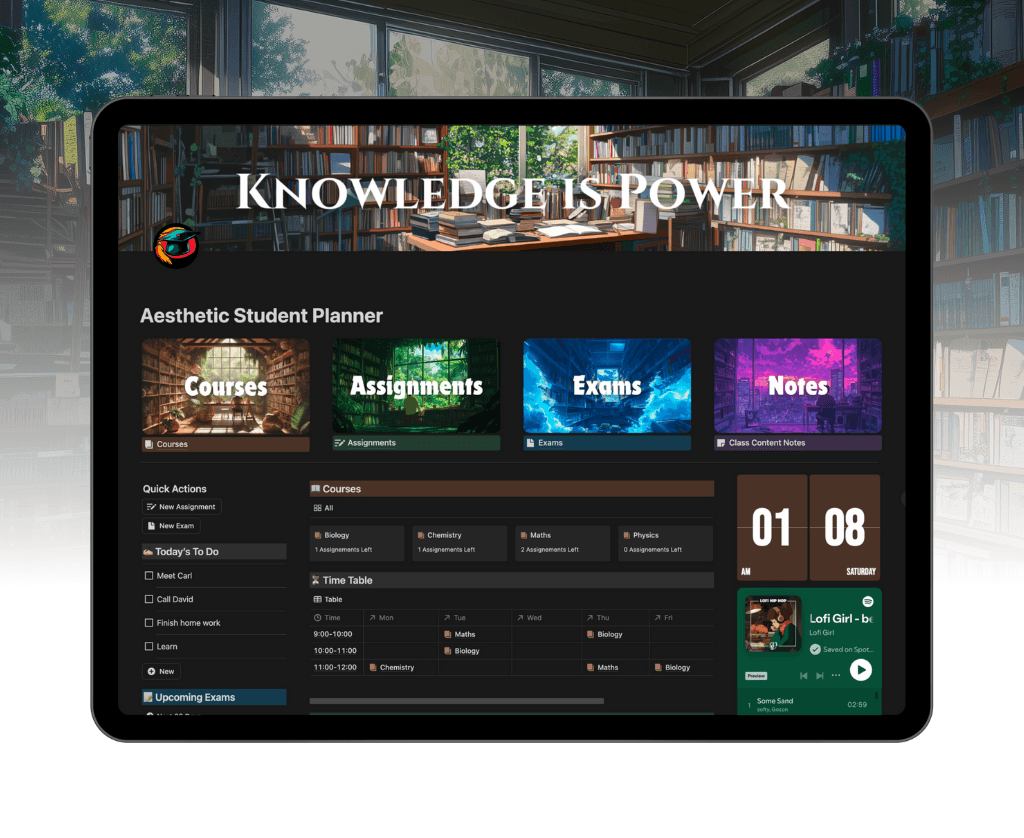
Collaborate on group projects by sharing pages and resources, or use the Ultimate Student OS template for all-in-one academic management. These systems help balance studies, extracurriculars, and personal life, ensuring nothing falls through the cracks. Educators can share materials and feedback with ease.
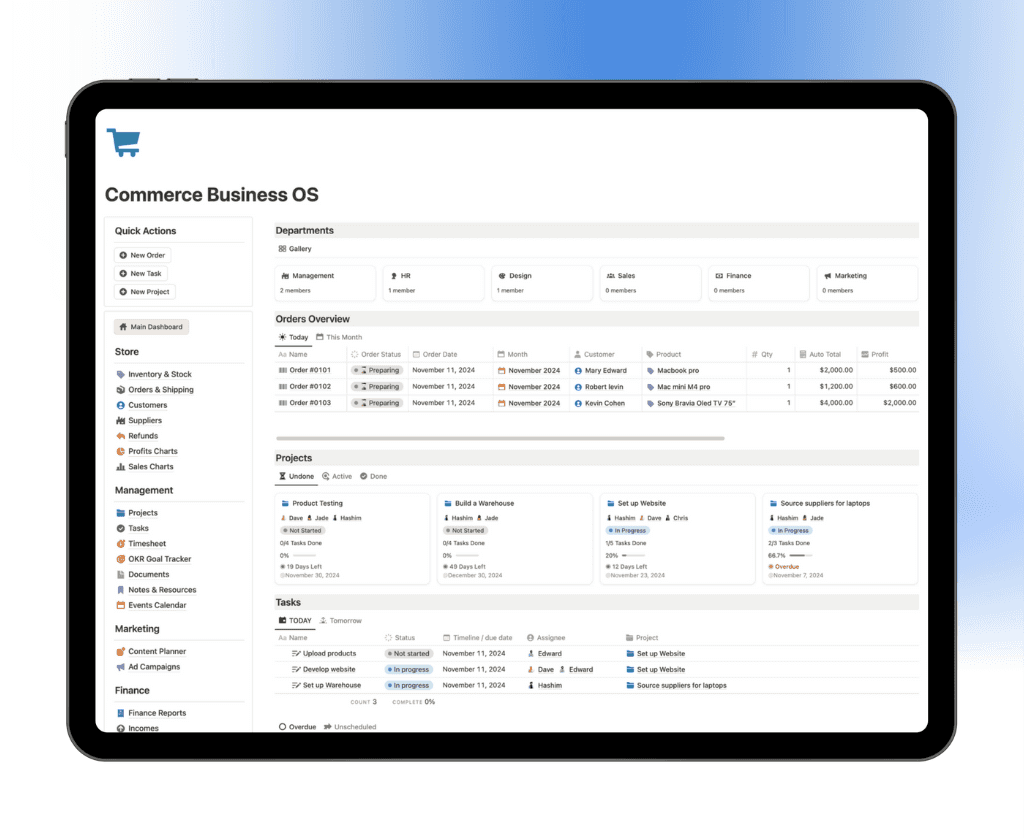
Business Operations and Team Collaboration
Modern teams use notion to manage projects, clients, and finances efficiently. Set up project boards, CRM systems, and knowledge bases for transparent operations. Notion's permissions allow secure sharing, so teams can collaborate on SOPs, client portals, or internal wikis.
For entrepreneurs and agencies, a Business OS template centralizes workflows. This improves transparency and speeds up decision-making. According to Notion's Revenue and User Growth, Notion surpassed 100 million users in 2025, highlighting its impact on business productivity worldwide.
Freelancers and Creators: Portfolio and Content Management
Freelancers use notion to showcase their portfolios, track client projects, and manage invoices. You can publish Notion pages as websites, adding custom domains for a professional touch. Linking feedback forms or payment tools streamlines client interactions.
For example, organize a freelance writing business with a content calendar, client database, and income tracker. Notion's flexibility means you can adapt your workspace as new opportunities arise. This empowers creators to focus on their craft while staying organized and responsive.
Scaling with Notion: From Individuals to Enterprises
As your needs evolve, you can use notion to scale from a personal workspace to a full enterprise platform. Transition smoothly by onboarding new team members, creating training resources, and standardizing templates.
Best practices include regular reviews and clear documentation. Case studies show businesses leveraging Notion for all operations, from HR to project management. For insight into Notion's international reach and diverse user base, see Notion's Global User Demographics. This adaptability ensures Notion remains effective for any stage of growth.
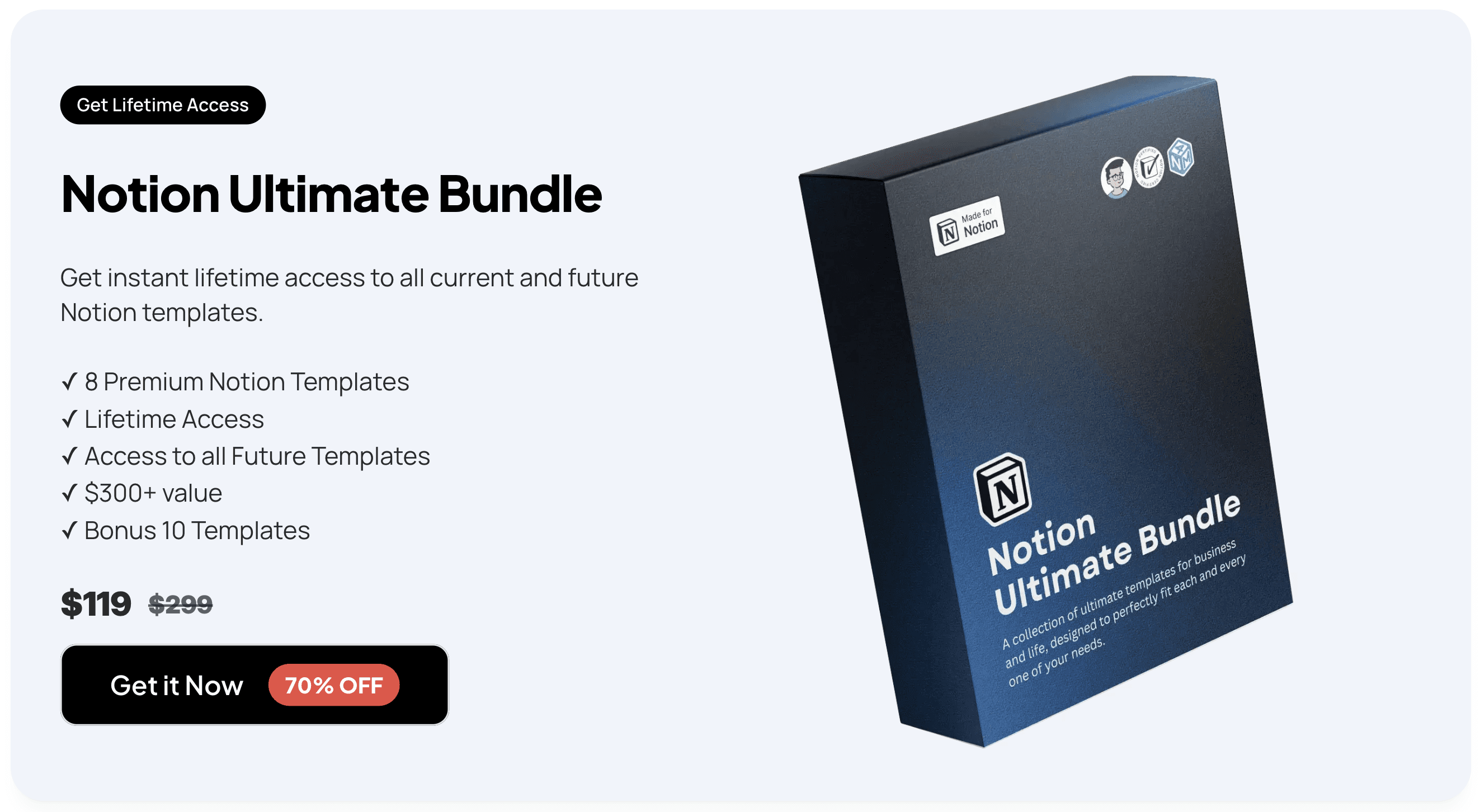
Now that you’ve seen how Notion can completely transform the way you organize everything—from daily tasks to complex projects—it’s clear that having the right setup is essential to unlocking its full potential. If you’re ready to put these strategies into action and want a head start, there’s no need to build from scratch. You can instantly access a curated collection of templates designed for both personal and professional growth by checking out the Get the Ultimate Notion Bundle. This bundle gives you the practical tools you need to streamline your workflow and achieve your goals with confidence.
← All Posts
Get Lifetime Access
Get instant lifetime access to all current and future Notion templates.
✓ 8 Premium Notion Templates
✓ Lifetime Access
✓ Access to all Future Templates
✓ $300+ value
✓ Bonus 10 Templates
$119
$299
Get it Now
70% OFF